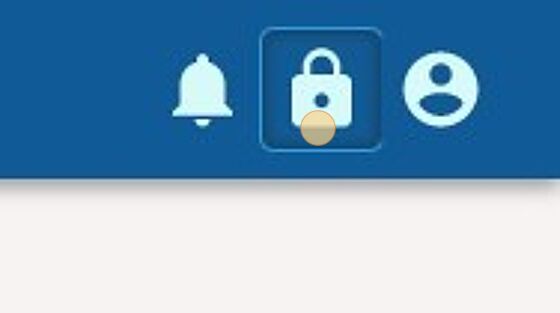
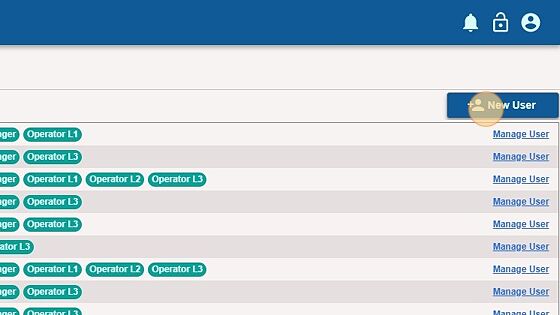
*Updated: June 2026* *Author: Carefree Support* ## Adding New Users to Your Team Once your CarefreeSCADA account is set up, you can add operators, on-call personnel, and any other team members who need access to the platform. You must have the Manager role and an authenticated session to add or edit users. See [[User Permissions]] for role details. 1. From the left sidebar, click **Manage Team**. ![](https://ajeuwbhvhr.cloudimg.io/colony-recorder.s3.amazonaws.com/files/2023-01-23/1bcb1757-f9ec-4db5-b5e8-7099e8dd5f13/user_cropped_screenshot.jpeg?tl_px=0,0&br_px=536,299&sharp=0.8&width=560&wat_scale=50&wat=1&wat_opacity=0.7&wat_gravity=northwest&wat_url=https://colony-labs-public.s3.us-east-2.amazonaws.com/images/watermarks/watermark_default.png&wat_pad=130,179) 2. Click **User Management**. ![](https://ajeuwbhvhr.cloudimg.io/colony-recorder.s3.amazonaws.com/files/2023-01-23/deca3083-c1e6-4ff7-868b-ee4748f077d0/user_cropped_screenshot.jpeg?tl_px=0,0&br_px=728,406&sharp=0.8&width=560&wat_scale=50&wat=1&wat_opacity=0.7&wat_gravity=northwest&wat_url=https://colony-labs-public.s3.us-east-2.amazonaws.com/images/watermarks/watermark_default.png&wat_pad=119,150) 3. If you have not already authenticated your session, click the padlock icon in the top right of the page and complete Multi-Factor Authentication. See [[Manage User Account#Authenticating Your Web Session]] for detailed steps. ![](https://ajeuwbhvhr.cloudimg.io/colony-recorder.s3.amazonaws.com/files/2023-01-23/77b6cd44-a42b-4f4a-a129-b7806e4e49d8/user_cropped_screenshot.jpeg?tl_px=0,0&br_px=188,105&sharp=0.8&width=560&wat_scale=50&wat=1&wat_opacity=0.7&wat_gravity=northwest&wat_url=https://colony-labs-public.s3.us-east-2.amazonaws.com/images/watermarks/watermark_default.png&wat_pad=300,110) 4. Send the Multi-Factor Authentication code to your preferred contact method. Enter the 6-digit code into the **Verification Code** field and click **Submit**. ![](https://ajeuwbhvhr.cloudimg.io/colony-recorder.s3.amazonaws.com/files/2023-01-23/1e4112c4-0c7b-4c8e-93c9-36038c7b1821/user_cropped_screenshot.jpeg?tl_px=0,47&br_px=353,467&sharp=0.8&width=560&wat_scale=50&wat=1&wat_opacity=0.7&wat_gravity=northwest&wat_url=https://colony-labs-public.s3.us-east-2.amazonaws.com/images/watermarks/watermark_default.png&wat_pad=457,315) 5. You should now see a **New User** button in the top right of the page. Click it. ![](https://ajeuwbhvhr.cloudimg.io/colony-recorder.s3.amazonaws.com/files/2023-01-23/b92feab3-809e-4e77-bebf-6fe282326c09/user_cropped_screenshot.jpeg?tl_px=82,0&br_px=828,420&sharp=0.8&width=560&wat_scale=50&wat=1&wat_opacity=0.7&wat_gravity=northwest&wat_url=https://colony-labs-public.s3.us-east-2.amazonaws.com/images/watermarks/watermark_default.png&wat_pad=468,91) 6. Fill in the new user's information. The email address is required — it is how the user receives their temporary password. For details on each role, see [[User Permissions]]. ![](https://ajeuwbhvhr.cloudimg.io/colony-recorder.s3.amazonaws.com/files/2023-01-23/238e83c2-62d5-41aa-846a-e69a0f224892/user_cropped_screenshot.jpeg?tl_px=0,0&br_px=352,349&sharp=0.8&width=560&wat_scale=50&wat=1&wat_opacity=0.7&wat_gravity=northwest&wat_url=https://colony-labs-public.s3.us-east-2.amazonaws.com/images/watermarks/watermark_default.png&wat_pad=215,91) 7. To further configure the user (add contact info, set a call schedule, reset a password), click the **Manage User** button next to their name. ![](https://ajeuwbhvhr.cloudimg.io/colony-recorder.s3.amazonaws.com/files/2023-01-23/7e1c9982-a920-4940-86bc-100564bc73b8/user_cropped_screenshot.jpeg?tl_px=102,54&br_px=848,474&sharp=0.8&width=560&wat_scale=50&wat=1&wat_opacity=0.7&wat_gravity=northwest&wat_url=https://colony-labs-public.s3.us-east-2.amazonaws.com/images/watermarks/watermark_default.png&wat_pad=475,227) 8. The Manage User panel opens, where you can reset the password and add contact information. The email is auto-populated when the account is created. To enable SMS alarm notifications, the user needs a phone number on their account. Click **Add Contact Info**. ![](https://ajeuwbhvhr.cloudimg.io/colony-recorder.s3.amazonaws.com/files/2023-01-23/78db48d5-f2e8-4608-a91c-58a87fe2f0a4/user_cropped_screenshot.jpeg?tl_px=0,318&br_px=742,738&sharp=0.8&width=560&wat_scale=50&wat=1&wat_opacity=0.7&wat_gravity=northwest&wat_url=https://colony-labs-public.s3.us-east-2.amazonaws.com/images/watermarks/watermark_default.png&wat_pad=244,212) 9. Set the contact type to **SMS**, enter the user's 10-digit phone number, and click **Add Contact Info**. The user can now receive alarm notifications and Multi-Factor Authentication codes via SMS. To set up who gets called when an alarm fires, see [[On-Call Roster]] and [[Alarm Notification and On-Call Roster]]. ![](https://ajeuwbhvhr.cloudimg.io/colony-recorder.s3.amazonaws.com/files/2023-01-23/36e38133-5a57-4679-8efc-035bb003f241/user_cropped_screenshot.jpeg?tl_px=0,61&br_px=407,481&sharp=0.8&width=560&wat_scale=50&wat=1&wat_opacity=0.7&wat_gravity=northwest&wat_url=https://colony-labs-public.s3.us-east-2.amazonaws.com/images/watermarks/watermark_default.png&wat_pad=430,270) --- *For help adding users, contact Carefree Support at [email protected] or call (208) 362-5858.* *© 2026 Advanced Control Systems, LLC. CarefreeSCADA is a trademark of Advanced Control Systems.*